Define the access.Set the role.Test the experience.
Guided setup takes an administrator through site, warehouse, people, roles and stations in screens, not code; every access change is tested as the person it affects.
The role reaches the right controls.

Follow one new site through setup
An administrator sets up a packing site. Four stages, in the order setup needs them.
Site, industry and compliance needs
Pick the industry and the rules you work under.
See a new site set up step by step
1. Site, industry and compliance needs
Pick the industry and the rules you work under.
Defaults for screens and terms follow, and stay editable.
Nothing is locked in.
- Validation
- Your quality team remains responsible for validating the configured system for its intended use.
Defaults are a starting point; your quality team confirms the configuration.
Guided setup · 1
Site B · packing
- Industry
- Food processing
- Compliance needs
- Food safety · e-signatures
- Terminology
- Industry defaults · editable
- Units
- kg · °C
- Status
- Saved · step 2 next
Choices set defaults you can change.
2. Lay Out the Warehouse
Zones, bins and putaway rules are set in a guided flow.
A pattern creates many bins at once.
Quarantine on receipt is a setting.
- Production
- The production wizard sets up lines, work centres and first formulas in the same guided way.
Plan bin naming before go-live; renaming later touches labels.
Warehouse Wizard
Locations and bins
- Zones
- Receiving · Quarantine · Store · Dispatch
- Bins
- 120 created from pattern
- Putaway rule
- Allergen items to zone A
- Pallet ID format
- LP-######
- Quarantine
- Required on receipt
Bins come from a pattern, not one by one.
3. Roles and Approvers
Each role gets its screens and kiosk actions.
E-signature approvers are named per record type.
Test each change as the role it affects.
- Training
- Kiosk actions can require current training — see Skills matrix.
Single sign-on is Enterprise; automatic user provisioning (SCIM) is coming soon.
Team & Roles
Who may do what
- Operators
- 18 · kiosk actions only
- Shift leads
- 3 · verify steps
- QA
- 2 · release · e-sign approver
- Admin
- 1 · setup screens
- Approver vs author
- Set by your procedure
Access is written down in the checklist below.
4. Floor Stations and Imports
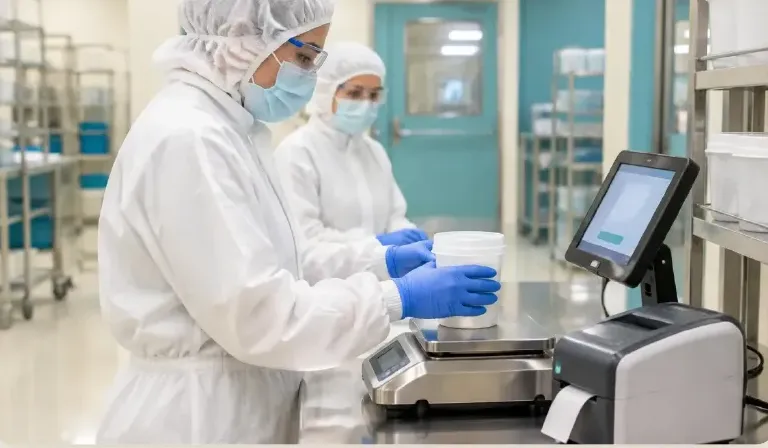
Stations are paired to tablets, scales and printers.
Document import turns SOPs into drafts.
Paper batch capture maps old records for review.
- ERP
- The ERP setup wizard (Professional and Enterprise) connects business software — see ERP integration.
Imported content is a draft; a person checks every value before use.
Stations & Imports
Ready for first job
- Kiosk K-1
- Packing · paired
- Scale S-12
- Paired · calibration due
- SOPs imported
- 14 drafts · for review
- Paper batch records
- 6 captured · for review
- First job
- After QA approves drafts
Imports are drafts until approved.
Setup Connects To
Pages that setup prepares.
- Manufacturing KioskA simple floor screen for the job in front of the operator.See Manufacturing Kiosk
- This pageSetup & adminSites, warehouses, roles and stations for a new workspace.
- Hardware & DevicesScales, printers and scanners connected at set-up.See Hardware & Devices
- Skills MatrixSee who is trained on what before planning a shift.See Skills Matrix
AI and Setup & admin
Configure permissions before assistance
Configure permissions before assistance
Ask V5 about workspace setup and roles. AI features need appropriate provider access and permissions; an assistant cannot grant itself authority.
Guided setup wizards
All plansSite, warehouse, production.
Document import
All plansSOPs to drafts.
Paper batch capture
All plansOld records to drafts.
Device pairing
All plansScales, printers, tablets.
ERP setup wizard
Professional and EnterpriseConnect business software.
Single sign-on
EnterpriseSAML.
Administrators configure. Quality confirms the setup before production use.
Connected Stations & Workspace Readiness Guide
For administrators, quality and IT teams setting up a workspace and its stations, and proving who may do what. Use it with or without V5.
- What's native vs your procedure
- Station and record architecture
- Scale units and resolution
- Scanner and GS1 field tests
Plus Labels, reprints and versions; Stale or disconnected devices; Roles, separation and revocation; Commissioning acceptance matrix; Owner handoff and first month.
Get the guideWe ask for your name and email so we can handle this request. The full guide then opens on this site, ready to translate, print or save. Privacy policy.
 Ultimate
Free buyer guide
Connected Stations & Workspace Readiness Guide
Straight answers.
What buyers ask us first about Orders & Integrations.
Does V5 connect to our ERP?
There is an ERP bridge with suggested mappings, review and a dry run, and you approve go-live. Each connection needs setup, so tell us which system you use.
Can customers and suppliers see their own records?
Customer and supplier portals are available from Professional, so each sees only what you share with them.
Do we have to replace our accounting system?
No. V5 runs operations and connects to your existing accounting or ERP where setup allows.
More of the product
Start with one area. Add the rest when you are ready.
 Warehouse & TraceabilityExplore
  Production & PlanningExplore
  Quality & LaboratoryExplore
  Documents & TrainingExplore
  Equipment & PerformanceExplore
  This feature's areaOrders & IntegrationsExplore
Start a trial workspace and walk the setup yourself.
Start a free trial or talk it through with us. No card needed.